Create Custom Tags (GIFs)
The Release theme includes a powerful tagging system that helps you highlight important product details and promotions. Tags make your store more visually engaging and help customers quickly identify features such as discounts, new arrivals, or special product attributes.
This guide will show you how to create, customize, and manage custom tags.
To create custom tags:
-
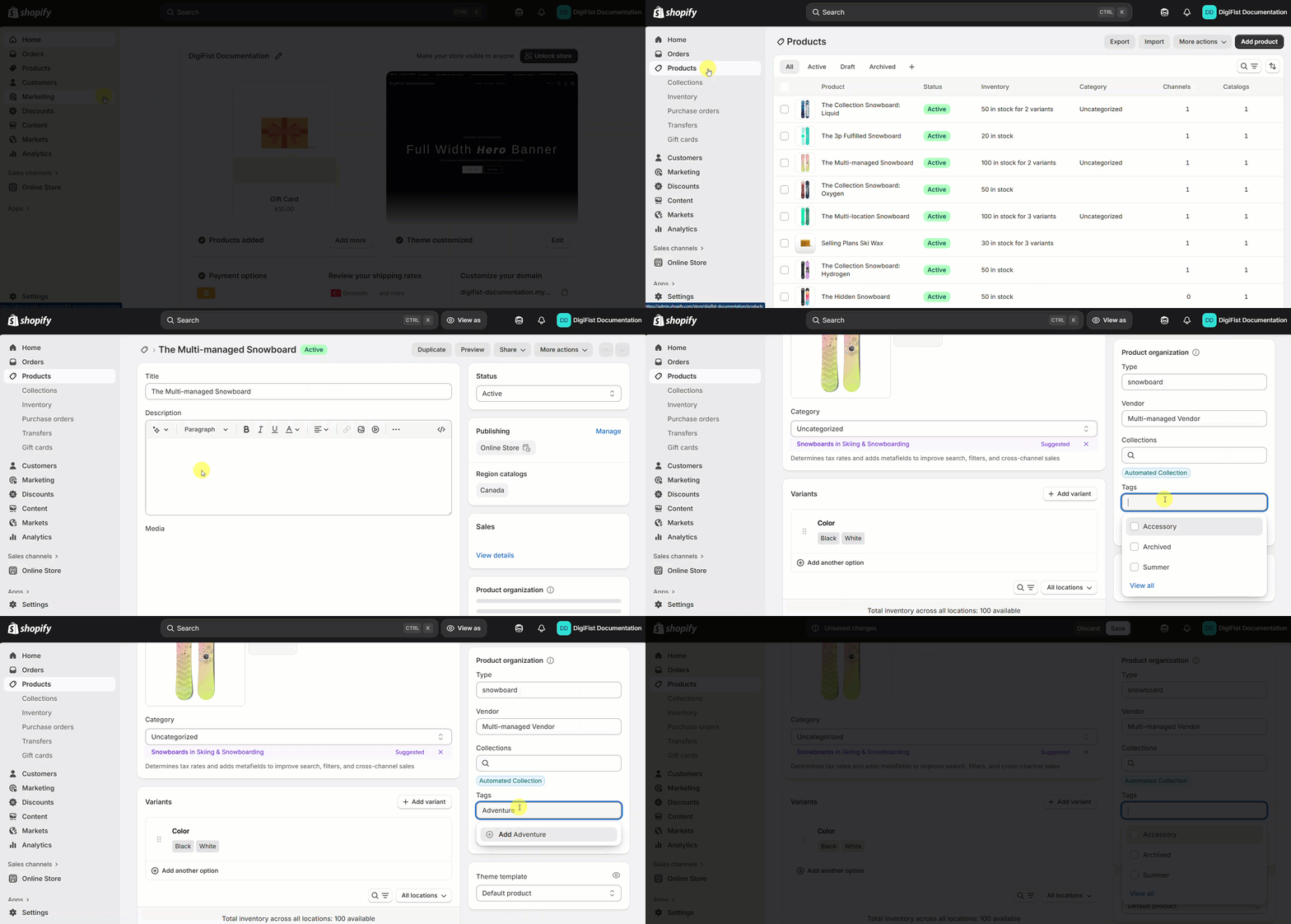
In your Shopify Admin, go to Products.
-
Select the product where you want to add tags.
-
Scroll down and find the Tags field on the left menu.
By using product tags, you can create unique badges that align with your brand and highlight key selling points.
- In the Tags field, enter the name of your custom tag. Then, press enter.
-
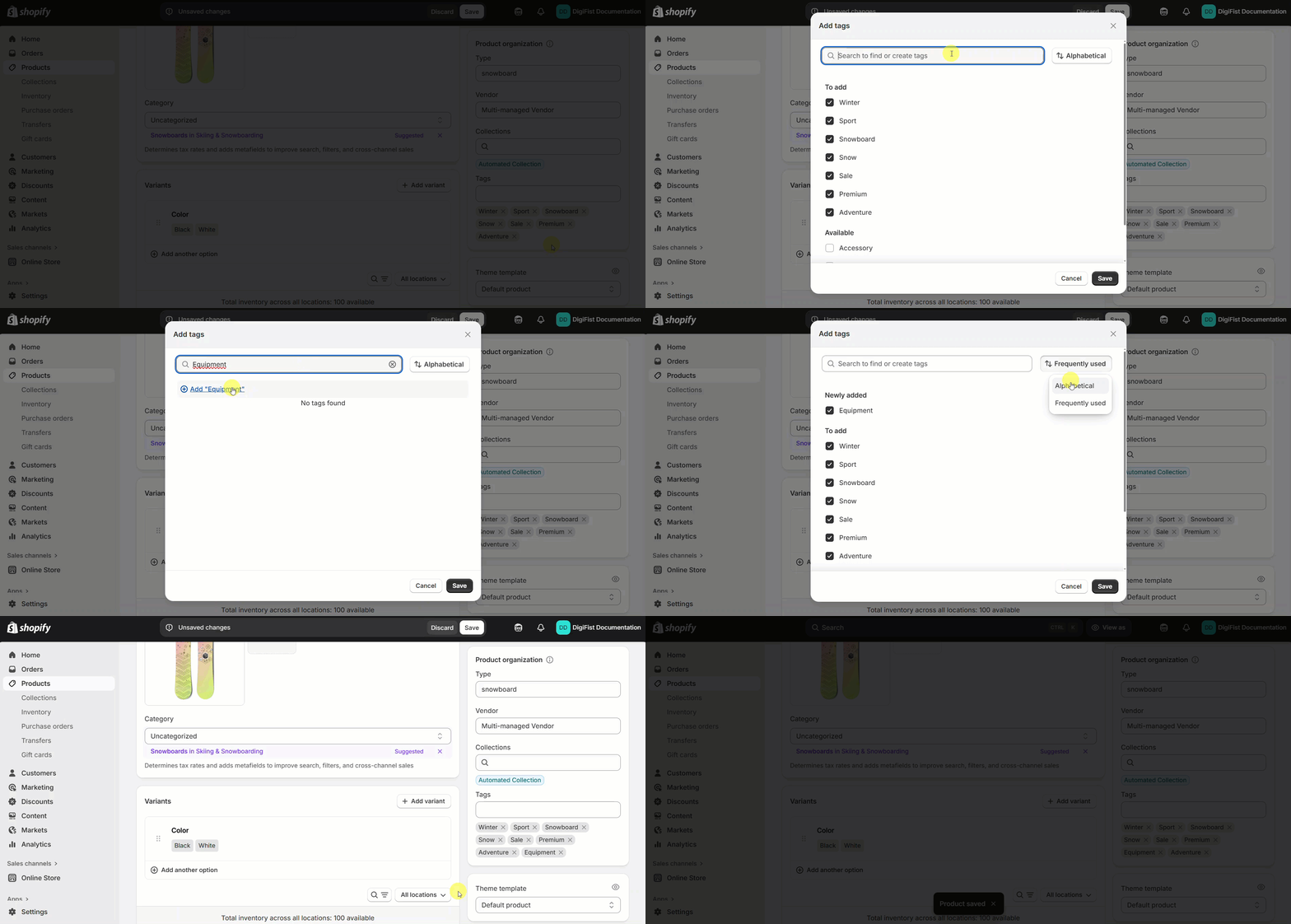
You can click View all to manage your tags.
-
Use the search bar to find a tag or enter a new tag.
-
Click the filter to sort results by Alphabetical or Frequently used.
-
Click Save to apply your tag changes. Then, click Save again at the top of the screen to save the changes to your product.
-
Once saved, tags display instantly across your storefront, ensuring customers immediately see the information you want to highlight.
-
Your tags will automatically appear on product cards and product pages.